Somebody asks you to send a document. The original is on paper. You do not own a scanner. The cybercafe down the road charges three hundred naira per scan and the queue is five people deep. You take a photo with your phone instead. The lighting is uneven. The text is slightly tilted. Shadows creep across the edges. It looks unprofessional and the recipient asks you to resend a proper scan.
Phone scanning apps solve this. They turn your phone camera into a document scanner that produces clean, flat, properly lit PDFs. The best ones automatically detect document edges, correct perspective, enhance text readability, and export in formats that offices and schools accept.
After testing several scanning apps under typical Nigerian conditions which means inconsistent lighting, various paper qualities, and mid-range phone cameras, these are the ones that consistently produce professional results.
CamScanner
CamScanner is the most popular document scanning app globally and among Nigerian users. The name recognition is earned because the app works reliably.
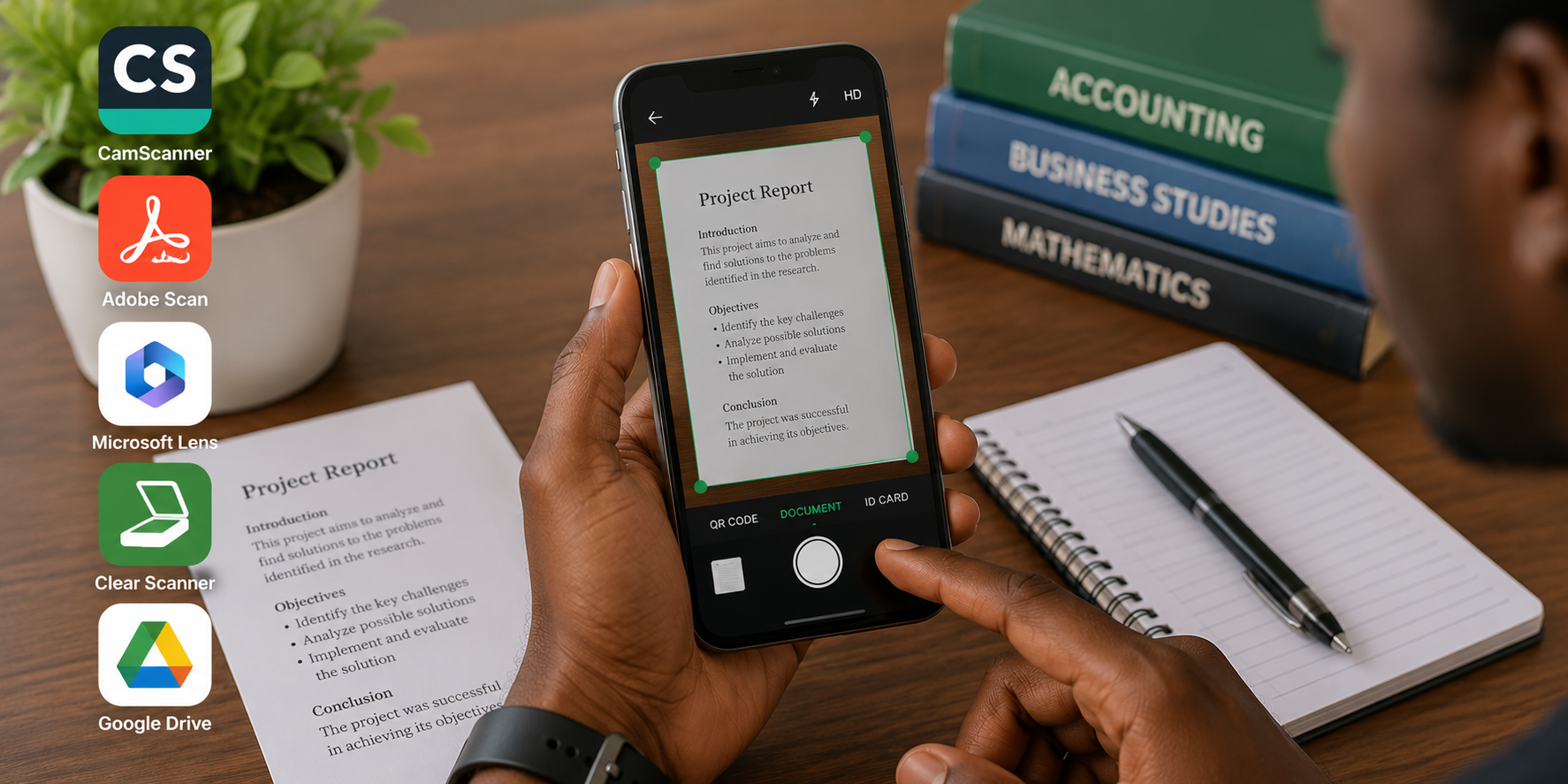
Open the app, point your camera at a document, and CamScanner automatically detects the edges. A coloured border shows what the app has identified as the document boundary. Tap the shutter. The app crops to the detected edges, corrects perspective so the document appears flat, and applies image enhancement.
Multiple enhancement filters are available. The auto filter balances brightness and contrast for general documents. The black and white filter produces crisp text ideal for printed pages. The colour enhancement filter preserves colours for certificates, receipts, and documents with logos.
Multi-page scanning creates a single PDF from multiple pages. Scan ten pages of a contract and CamScanner combines them into one file. Page order is adjustable after scanning. Delete blurry pages and rescan individual sheets without restarting the entire document.
The free version includes watermarks on exported PDFs and limits some features. For occasional scanning, the watermark is small and placed at the bottom corner. Most recipients do not comment on it. Heavy users benefit from the premium version which removes watermarks and unlocks batch processing.
Adobe Scan
Adobe Scan is the free offering from the company that created the PDF format. The app is completely free with no watermarks and no premium tier that locks essential features.
Adobe Scan detects document edges similar to CamScanner. The processing produces clean results optimized for text readability. Adobe’s image processing algorithms are among the best available.
Scanned documents are saved directly as PDFs. Text recognition runs automatically on every scan. You can search within scanned documents for specific words. This transforms a stack of scanned lecture notes into a searchable study library.
Integration with Adobe Acrobat allows further editing if needed. Rotate pages, reorder, add or remove sheets. The companion app expands functionality beyond basic scanning.
The absence of watermarks makes Adobe Scan the best free option for students and professionals who cannot afford premium subscriptions. Every feature needed for clean document scanning is available without payment.
Microsoft Lens
Microsoft Lens, previously known as Office Lens, integrates deeply with Microsoft’s ecosystem. If you use OneNote, OneDrive, or Microsoft Office, this app fits seamlessly into your workflow.
Document scanning works similarly to competitors. Edge detection, perspective correction, and enhancement filters produce clean output. The filters are specifically tuned for document types. Whiteboard mode handles photos of whiteboards and chalkboards. Business card mode extracts contact information automatically. Photo mode preserves full colour for images.
Scans save directly to OneDrive, OneNote, or your phone gallery. The OneNote integration is useful for students who organize course materials in OneNote notebooks. Scan lecture notes directly into the relevant notebook section.
Text recognition exports to Word format. Scan a printed document and Microsoft Lens converts it to editable Word text. Accuracy depends on original document quality but is competitive with other OCR solutions.
The app is completely free with no watermarks and no premium tiers. Microsoft uses it to promote their ecosystem rather than to generate direct revenue.
Clear Scan
Clear Scan offers a different approach to document enhancement. Instead of standard filters, the app applies adaptive processing based on document content.
The app analyzes each scan and adjusts brightness, contrast, and sharpness locally rather than uniformly. Dark areas of the image receive different treatment than light areas. Text receives different enhancement than images. The result is balanced output even from unevenly lit originals.
Clear Scan handles low-quality phone cameras better than competitors. On phones with weaker cameras that produce noisier images, Clear Scan’s processing cleans up the noise while preserving text legibility. This makes it suitable for budget Android phones common among Nigerian students.
The free version includes ads that appear between scans, not during scanning. Premium removes ads and adds batch processing. For individual document scans, the free version works well.
Google Stack
Google Stack is a newer offering focused on document organization rather than just scanning. It scans documents and automatically categorizes them.
The app identifies document types. Receipts are tagged as receipts. Identity documents are tagged as IDs. Bills are tagged as bills. This automatic organization helps maintain order when scanning many documents over time.
Information extraction pulls key details from scanned documents. Receipt amounts, dates, vendor names. These become searchable without opening the PDF. Finding a specific receipt months later becomes a search query rather than scrolling through thumbnails.
The app is free with no watermarks. Availability is currently limited to Android. The focus on organization rather than just scanning makes it useful for users who scan documents regularly and need to find them later.
App Comparison Table
| App | Free | Watermark | Best For | Standout Feature |
|---|---|---|---|---|
| CamScanner | Yes (limited) | Yes (free) | General scanning | Multi-page PDF creation |
| Adobe Scan | Yes (full) | No | Students, professionals | Auto OCR, no watermarks |
| Microsoft Lens | Yes (full) | No | Microsoft users | OneNote/OneDrive integration |
| Clear Scan | Yes (ads) | No | Budget phones | Adaptive local enhancement |
| Google Stack | Yes (full) | No | Document organization | Auto-categorization |
Practical Scanning Tips for Nigerian Conditions
Lighting is the single biggest factor in scan quality. Natural daylight near a window produces the best results. Avoid direct sunlight which creates harsh shadows. Avoid dim indoor lighting which produces grainy scans. Overcast outdoor light is ideal.
Place the document on a contrasting surface. A white document on a dark table is easier for the app to detect than a white document on a white table. The contrast helps edge detection algorithms identify the document boundary.
Hold the phone steady. Bracing your elbows against your body stabilizes the phone. Taking the photo from directly above prevents perspective distortion. Some apps include a stabilizer feature that automatically captures when the phone is steady.
Check the scan before saving. Zoom in on text. Confirm it is readable. Reject and rescan if quality is poor. The five seconds spent verifying saves the frustration of resending later.
Rename files immediately after scanning. A filename like “Scan_20260415.pdf” means nothing two weeks later. Rename to “NYSC_Exemption_Letter.pdf” or “JAMB_Admission_Letter.pdf” before saving. Future you will appreciate the clarity.
Frequently Asked Questions
Which app produces the smallest file sizes?
Adobe Scan typically produces the most efficient PDF compression. Files are small enough for email and WhatsApp sharing while maintaining readability. Microsoft Lens also produces compact files. CamScanner files tend to be slightly larger at comparable quality settings.
Can these apps scan handwritten documents?
Yes. All recommended apps handle handwritten text. Black and white or high contrast filters improve handwritten document readability. Blue or red ink may scan lighter than black ink. Test different filters for best results with coloured pens.
Do I need internet to scan documents?
Scanning works offline on all recommended apps. Edge detection and enhancement process on your device. Internet is only required for cloud backup features and text recognition on some apps. The core scanning function is fully offline.
Are scanned documents accepted as official documents?
Generally no. A scan of a certificate is not legally equivalent to the original or a certified true copy. However, scans are widely accepted for preliminary applications, online submissions, and informal verification. For official purposes, inquire about specific requirements.
Can I scan multiple pages into one PDF on all these apps?
Yes. All recommended apps support multi-page scanning. Look for the add page or batch scan option. The interface varies by app but the capability is standard.
Start Scanning Better Today
Uninstall whichever app you currently use if it produces poor results. Install Adobe Scan or Microsoft Lens. Both are completely free and produce professional quality scans without watermarks.
Find a document on your desk. Scan it using the new app. Compare the result to your previous scans. The difference in edge detection, perspective correction, and text clarity will be immediately visible.
Professional document presentation matters. It affects how your work is perceived. Clean scans communicate competence. Sloppy photos of documents communicate the opposite. The apps are free. The improvement is instant. Scan better starting today.