Someone sends you a PDF document. You need to edit it. The text needs changes. A section needs to be removed. New paragraphs need to be added. You cannot edit a PDF directly. You need to convert it to Word format first.
Most online conversion tools ask you to upload the file to their servers. Some put watermarks on the output. Others limit how many pages you can convert. Some claim to be free but demand payment when you try to download the converted file.
You do not need a laptop for this. Your phone can convert PDF to Word reliably using free tools that work offline. This guide covers the best methods for both Android and iPhone users.
Why Direct PDF Editing Fails
PDF was designed as a final format. It preserves layout, fonts, and images exactly as the creator intended. It was not designed for editing. When you try to type directly on a PDF using basic apps, the text shifts, formatting breaks, and the result looks unprofessional.
Converting to Word format unlocks the document for editing. You make your changes in an editable environment. When finished, you can export back to PDF if needed. The final document looks polished because you edited it in the right format.
Method 1: Microsoft Word Mobile
Microsoft Word on mobile includes a PDF conversion feature that many users overlook. It works on both Android and iPhone.
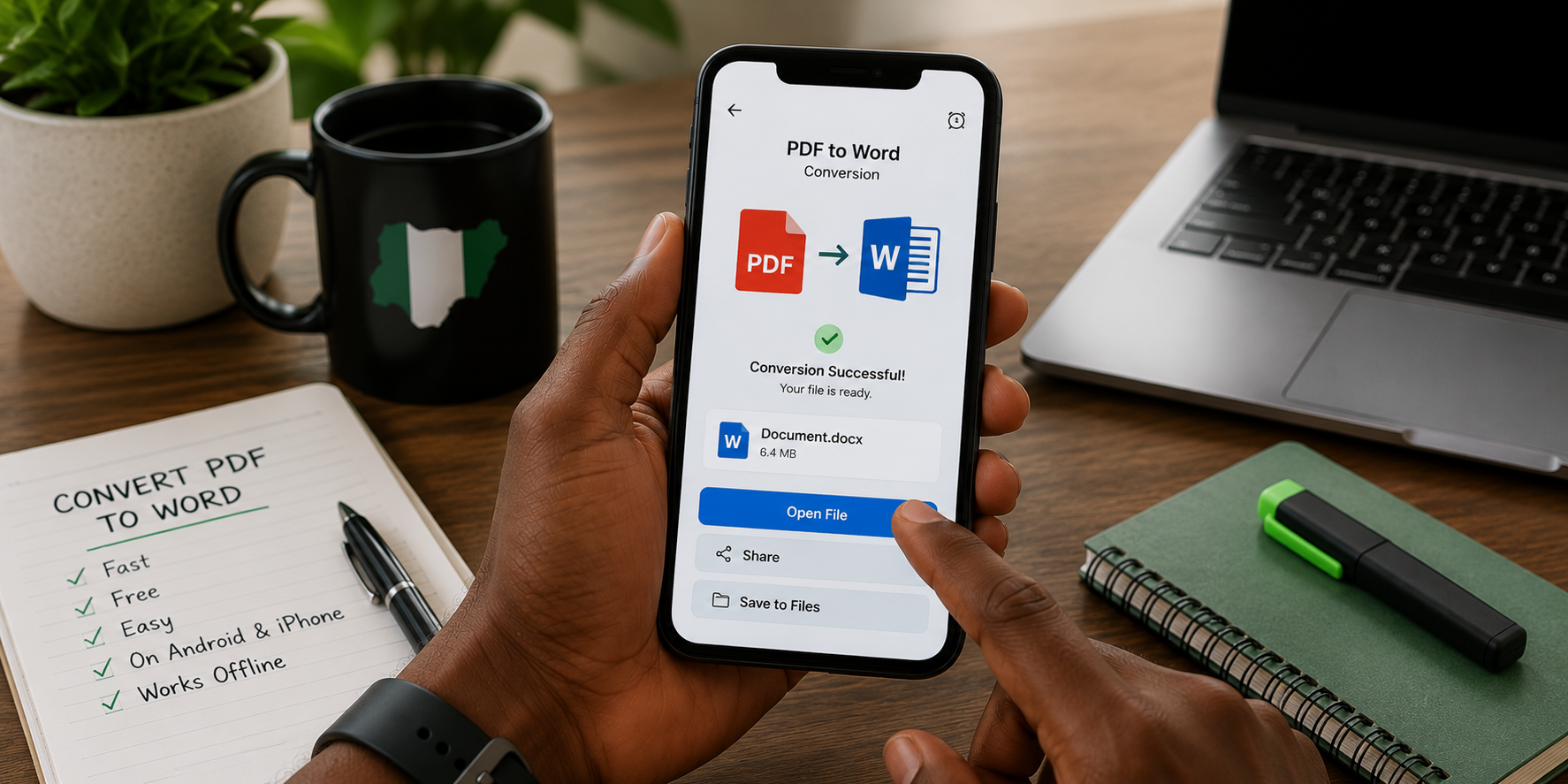
Open the Microsoft Word app. Tap the folder icon to browse for files. Navigate to the PDF you want to convert and select it. Word displays a message explaining that it will convert the PDF to an editable Word document. Tap convert.
The conversion takes a few seconds for small documents. Longer documents take proportionally longer. The result opens as an editable Word document. Fonts, images, and layout are preserved as closely as possible.
Complex PDFs with many images, tables, and unusual fonts may not convert perfectly. Simple text-based PDFs convert with high accuracy. The output is always editable, even if some manual reformatting is needed for complex documents.
Edit the document as needed. When finished, save as Word document for continued editing or export as PDF for sharing. The entire workflow happens within one free app.
Microsoft Word mobile is free for basic editing on devices with screens smaller than ten inches. The free tier covers all the functionality needed for PDF conversion and document editing.
Method 2: Google Docs
Google Docs offers a different conversion path. It does not convert PDF directly but uses optical character recognition to extract text.
Upload the PDF to Google Drive. Open Google Drive on your phone. Locate the uploaded PDF. Tap the three dots next to the file name. Select open with Google Docs.
Google Docs processes the PDF and creates a new document containing the extracted text and images. The formatting is usually simplified. Complex layouts are reduced to simpler text flows. The content is preserved even when the exact formatting is not.
This method works best for PDFs where the text content matters more than precise formatting. Reports, articles, and simple documents convert well. Brochures, certificates, and heavily designed documents lose their visual structure.
The conversion is free with no page limits. Google Docs handles large documents without complaint. The output is saved to your Google Drive automatically.
Method 3: WPS Office
WPS Office is a free office suite popular among Android users. It includes a PDF to Word converter built into the app.
Open WPS Office. Tap the tools section or the PDF converter option depending on your version. Select PDF to Word. Choose the PDF file from your phone storage. The app converts it.
WPS Office handles formatting better than Google Docs for complex documents. Tables, columns, and images transfer more accurately. The app is optimized for mobile conversion and performs quickly.
The free version includes ads that appear between uses. The converter itself is not limited by ads during conversion. Premium removes ads and adds batch conversion.
WPS Office is available for Android. iPhone availability is limited. Android users gain access to a capable offline converter through this app.
Method 4: iLovePDF Mobile
iLovePDF is a web-based PDF tool set with a mobile app version. It offers PDF to Word conversion among many other functions.
The mobile app works similarly to the website. Select the PDF. Choose convert to Word. The app uploads the file to iLovePDF servers for processing. The converted file downloads back to your phone.
This method requires internet access. The conversion is not offline. However, iLovePDF is reliable with good conversion quality. The free tier allows a limited number of conversions daily. For occasional use, the free tier is sufficient.
The advantage of iLovePDF is conversion accuracy. Because processing happens on powerful servers rather than your phone, complex documents convert better than through offline methods.
Method 5: PDF to Word Converter Apps
Several dedicated converter apps exist on the Play Store. Quality varies significantly. Some work well. Others are ad-filled and produce poor results.
When choosing a dedicated converter app, check recent reviews carefully. Look for reviews mentioning conversion accuracy specifically. Apps with many generic five-star reviews and few detailed reviews are suspicious.
Test the app with a simple PDF first. Confirm the output is usable before relying on it for important documents. Delete apps that produce garbled output or demand payment for basic functionality that should be free.
Among dedicated apps, those with higher download counts and longer update histories tend to be more reliable. Apps updated recently to maintain compatibility with newer Android versions are preferable to abandoned apps.
Method Comparison Table
| Method | Free | Offline | Best For | Formatting Accuracy |
|---|---|---|---|---|
| Microsoft Word | Yes | Yes | General editing | Very Good |
| Google Docs | Yes | No | Text-heavy PDFs | Good |
| WPS Office | Yes (ads) | Yes | Complex formatting | Very Good |
| iLovePDF | Free tier | No | Occasional, high quality | Excellent |
| Dedicated Apps | Varies | Varies | Frequent conversion | Varies |
Tips for Better Conversion Results
The quality of the source PDF determines the quality of the conversion.
Text-based PDFs created directly from Word or other editors convert cleanly. The text is already digital. Conversion simply transfers it between formats.
Scanned PDFs created from photographs of physical documents are more difficult. The text is an image, not digital text. Optical character recognition must extract the text before conversion. Accuracy depends on the scan quality. Clear, well-lit scans produce better results than dark, blurry photos.
PDFs with unusual fonts may not convert accurately if the font is not available on your phone. The converter substitutes a similar font. The text remains editable but may look different from the original.
After conversion, always proofread the document. Check for text errors, missing content, and formatting problems. Automatic conversion is good but not perfect. Human review catches what automation misses.
When Not to Convert
Some documents are not worth converting.
Certificates and official documents with seals and signatures should not be edited. Request a new original if changes are needed. Converting and editing an official document may invalidate it.
Heavily designed documents like brochures and posters convert poorly. The formatting complexity exceeds what converters handle. Request the original design files from the creator instead of attempting conversion.
Documents you only need to sign, not edit, do not require conversion. Use PDF annotation tools to add a signature directly without format conversion.
Frequently Asked Questions
Will the converted document look exactly like the original PDF?
Probably not exactly. Simple text documents convert with high fidelity. Complex layouts with multiple columns, embedded images, and custom fonts may require manual adjustment after conversion. The content transfers. The formatting may shift.
Is it safe to upload PDFs to online converters?
Online converters receive your document on their servers. For sensitive documents containing personal or financial information, offline conversion through Word or Google Docs is safer. For non-sensitive documents, reputable online converters like iLovePDF present acceptable risk.
Can I convert scanned handwritten documents to editable Word text?
Partially. Optical character recognition works better with printed text than handwriting. Clear handwriting may convert acceptably. Messy handwriting will not. Treat OCR of handwriting as experimental.
Why does my converted document have strange characters?
The PDF likely contains fonts not available on your phone. The converter substitutes a default font that may display some characters incorrectly. Try a different conversion method. Some converters handle font substitution better than others.
Is there a page limit for free conversion?
Microsoft Word and Google Docs have no page limits. WPS Office free version handles reasonable document lengths. Online converters typically limit pages per day on free plans. For long documents, offline methods avoid limits entirely.
Convert Your Next Document Offline
The next time a PDF arrives that needs editing, do not search for an online converter. Open Microsoft Word on your phone. Tap the PDF. Wait a few seconds. Begin editing.
If you do not have Word installed, use Google Docs through Google Drive. Upload the PDF. Open with Docs. Edit the output.
Both methods are free. Both work offline after the initial conversion. Both produce editable documents you can work with immediately.
Stop letting PDFs trap your productivity. Convert them. Edit them. Move on with your work.