You send an email to a potential client. The body is well written. You made your points clearly. You attached the necessary documents. Then the recipient scrolls to the bottom and sees nothing. No name. No phone number. No indication of who you are beyond your email address.
Or worse, they see an outdated signature with a phone number that no longer works and a job title from two positions ago.
An email signature is not decoration. It is a digital business card. It tells every recipient who you are, what you do, and how to reach you. It makes your communication look professional and established. For Nigerian freelancers, job seekers, and business owners, a proper signature can be the difference between seeming like an amateur and seeming like someone worth taking seriously.
Creating one takes twenty minutes. The setup is free. Your emails look better forever after.
What a Nigerian Professional Email Signature Needs
Different markets have different expectations. What works for an American corporate employee might not be what a Nigerian client or employer expects to see.
Your full name comes first. Use the name you use professionally. If your email address contains your full name, the signature reinforces it. If your email address is informal, the signature provides the professional name you want recipients to use.
Your job title or professional description follows. Be specific. Instead of “Consultant,” write “Digital Marketing Consultant for Nigerian SMEs.” Instead of “Freelancer,” write “Freelance Video Editor for Social Media Content.” The description tells recipients immediately whether you are relevant to their needs.
Your phone number is essential. Nigerian business communication often moves quickly from email to WhatsApp or phone calls. Including your number with the country code makes it easy for international contacts to reach you. Format it as +234 800 000 0000. The country code matters because Nigerian emails reach both local and international recipients.
Your WhatsApp number if different from your main line deserves a separate line. Many Nigerian professionals maintain a dedicated WhatsApp line for business. If you do, include it and label it clearly as WhatsApp.
Your website or portfolio link shows your work. A personal website, a Behance portfolio, a LinkedIn profile, or a Linktree. Anything that allows the recipient to verify your credentials and see examples of your work adds credibility.
Your social media links if relevant to your profession. A LinkedIn profile is standard. Twitter makes sense if you discuss your industry there. Instagram works if you are in a visual field. Skip platforms where you post only personal content unrelated to your professional identity.
Your company logo if you represent a registered business. A small, clean logo image adds visual professionalism. Ensure the image is hosted somewhere reliable. Broken image icons in signatures look worse than no logo at all.
Avoid quotes, philosophical statements, and religious messages. These are common in Nigerian email signatures but they clutter the signature and rarely add professional value. The signature is about contact information, not personal expression.
Setting Up Your Signature in Gmail Mobile
Gmail on Android and iPhone supports signatures. The setup is in the settings menu.
Open the Gmail app. Tap the three horizontal lines for the menu. Scroll down to settings. Select the email account you want to add a signature to. On iPhone, settings may be accessed through the gear icon.
Tap signature settings. On Android, this is labelled mobile signature. Toggle the signature option on if it is not already active.
Type your signature in the text field. Use line breaks to separate elements. Keep the formatting simple. Gmail mobile signatures are plain text by default.
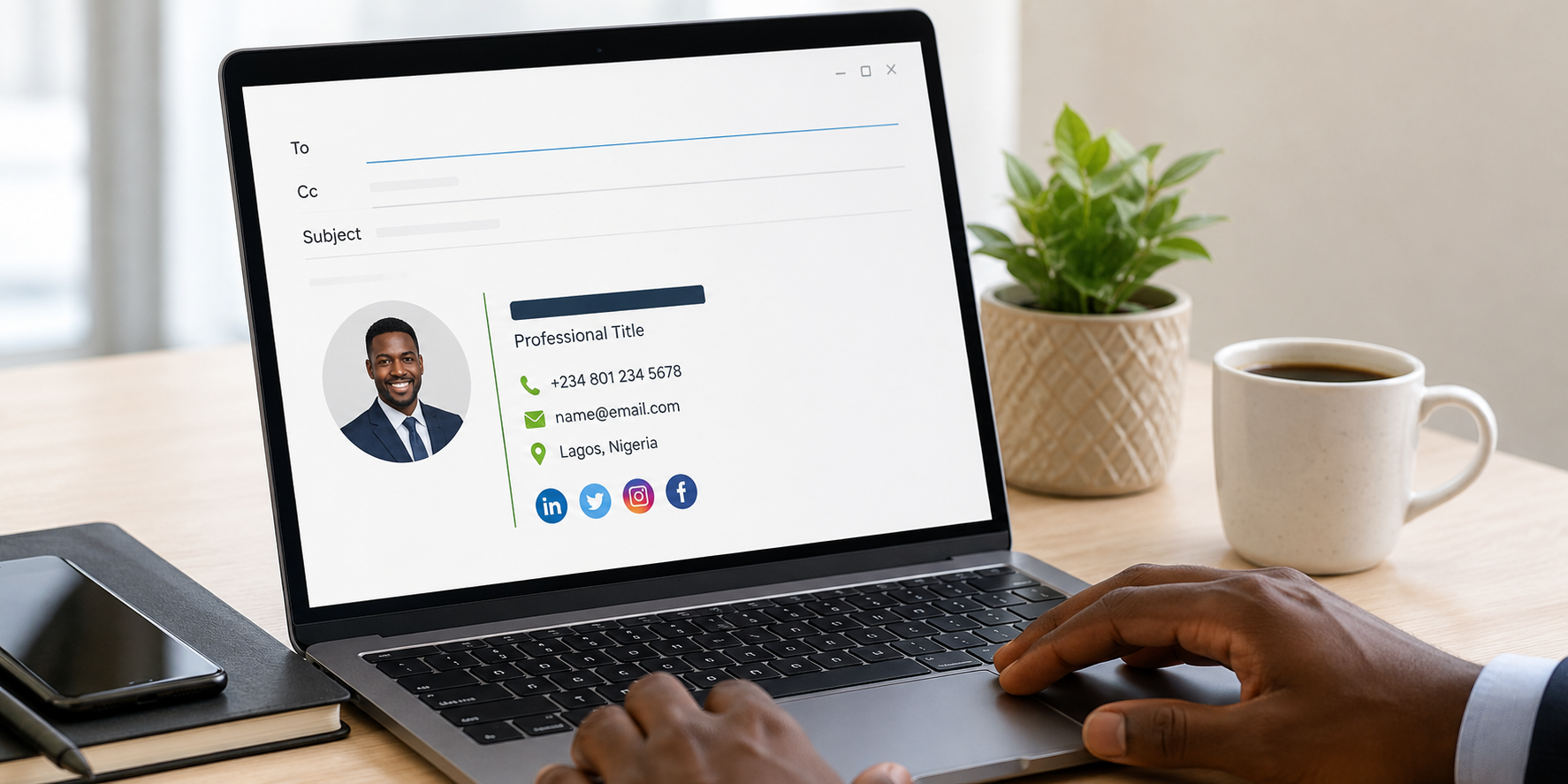
A basic effective signature looks like this:
John Doe
Freelance Graphic Designer | Brand Identity for Nigerian Businesses
Phone: +234 800 000 0000
WhatsApp: +234 800 000 0000
Portfolio: johndoeportfolio.com
LinkedIn: linkedin.com/in/johndoe
Save the settings. Send a test email to yourself to confirm the signature appears correctly.
Setting Up Your Signature in Gmail Desktop
The desktop version offers more formatting options including images, links, and styled text.
Open Gmail in a browser. Click the gear icon for settings. Select see all settings. Scroll to the signature section.
Click create new. Give your signature a name for your own reference. This name is not visible to recipients.
Use the formatting toolbar to style your signature. Bold your name. Use a slightly smaller font for contact details. Add hyperlinks to your website and social profiles instead of displaying full URLs.
To add an image like a logo, the image must be hosted online. Upload the image to a hosting service or your website. Use the insert image button in the signature editor. Paste the image URL. Avoid uploading directly from your computer as this creates attachment behaviour in some email clients.
Set signature defaults. Choose which signature appears on new emails and which appears on replies and forwards. Some people use a full signature for new emails and a shorter version for replies.
Save changes at the bottom of the page. Compose a new email to verify the signature appears and links work.
Setting Up Signature in Other Email Apps
Outlook Mobile: Open the Outlook app. Tap the home icon or your profile picture. Tap the gear icon for settings. Scroll to signature under the mail section. Type your signature. Outlook mobile supports basic text formatting. Save when complete. Outlook allows different signatures per account if you manage multiple email addresses.
Yahoo Mail: Open Yahoo Mail. Tap your profile icon. Tap settings. Select signatures under the general section. Toggle signature on. Type your signature. Save.
Apple Mail on iPhone: Apple Mail handles signatures through the iPhone settings rather than within the mail app itself. Open the Settings app on your iPhone. Scroll to Mail. Scroll to signature near the bottom. Select the email account or choose all accounts to use the same signature. Type your signature in the text field. Save and exit settings.
Signature Setup Quick Reference
| Email App | Where to Find Signature Settings | Formatting Support |
|---|---|---|
| Gmail (Mobile) | Menu > Settings > Account > Signature | Plain text |
| Gmail (Desktop) | Gear > See all settings > Signature | Rich text, images, links |
| Outlook (Mobile) | Profile > Gear > Mail > Signature | Basic text formatting |
| Yahoo Mail | Profile > Settings > Signatures | Plain text |
| Apple Mail (iPhone) | Settings > Mail > Signature | Basic text |
Making Your Signature Work Well Across Devices
Signatures created on desktop with rich formatting may appear differently on mobile. Images may not load. Colours may default to black. Fonts may change.
Test your signature by sending emails to yourself and opening them on different devices. Check how the signature looks on a phone, on a laptop, and in different email apps. Simplify formatting that breaks across platforms.
A clean, text-focused signature with minimal formatting works most reliably across all email clients. Fancy designs that look beautiful in Gmail desktop might arrive as broken HTML in Outlook. Reliability beats aesthetics for professional communication.
Updating Your Signature Regularly
An outdated signature is worse than no signature. Old phone numbers. Previous job titles. Links to portfolios you no longer maintain.
Review your signature every few months. Confirm phone numbers are current. Check that links still work. Update your title if your role changed. Add new achievements or credentials only if they serve the recipient.
When you change jobs or phone numbers, update your signature immediately. The email you send the week after a change should never contain your old contact information.
Frequently Asked Questions
Should I include a photo of myself in my signature?
Generally no. Photos increase email file size, may trigger spam filters, and appear differently across email clients. They also introduce potential bias before the recipient reads your message. Let your communication speak first. A photo is unnecessary for most professional contexts.
Can I use an HTML signature template?
Yes, if you are comfortable with basic HTML and host images properly. Free HTML signature generators exist online. Create your design, copy the HTML, and paste into Gmail desktop signature editor. Test thoroughly across devices.
How long should my signature be?
Four to seven lines is the sweet spot. Name, title, phone, email if desired, website, one social link. Longer signatures look cluttered and important details get lost in the noise.
Should I include my physical address?
Only if a physical address serves a business purpose. A retail store owner benefits from including a location. A remote freelancer does not need a physical address in their signature.
Can I include my bank account details?
Never. Email is not secure for financial information. Bank details in an email signature create fraud risk. Provide payment information through secure channels when specifically needed.
Create Your Signature Right Now
Open your email app settings. Navigate to the signature section. Type your name, title, phone number, and one professional link. Save. Send a test email to yourself.
The whole process takes less time than reading this article. The professional impression it creates lasts for every email you send afterward.
Your emails now close with authority. Recipients know who you are and how to reach you. The small detail of a proper signature communicates that you pay attention to your professional presentation. In a competitive market, attention to detail separates those who get replies from those who get ignored.