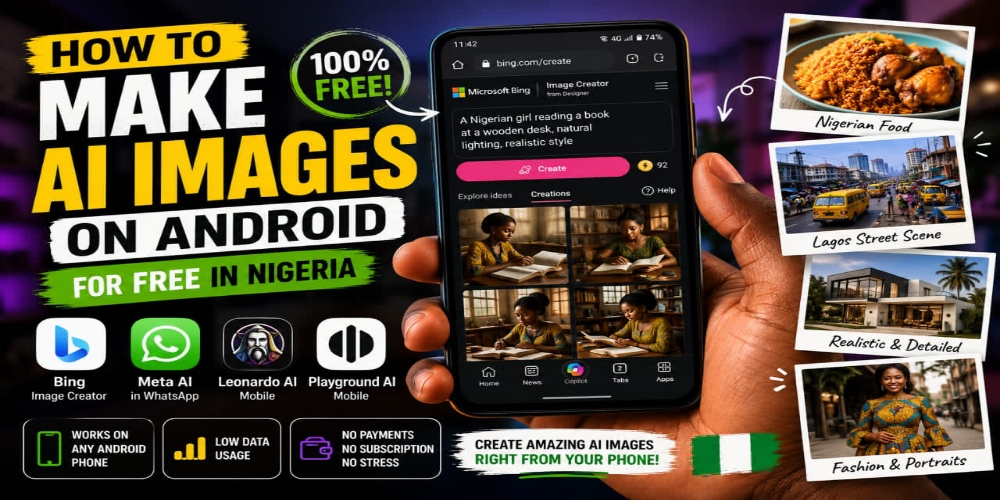
AI image generation sounds like something you need a powerful laptop for. Something you do in a fancy studio with fast internet. Not something you do on a Tecno Spark while lying on your bed with one bar of MTN signal.
But things changed. Right now in 2026, you can create impressive AI images directly on your Android phone without paying a single kobo. I do this regularly and the results surprise people when I tell them I made everything on my phone.
This guide will walk you through the exact methods I use. No fluff. No paid subscriptions. Just free tools that work in Nigeria.
What You Can Actually Use AI Images For
Before I show you the tools, let me clarify what these images can do for you.
- Students use them for project illustrations and seminar slides.
- Content creators use them for YouTube thumbnails and social media posts.
- Small business owners use them for quick product mockups and flyers.
- Church media teams have started using them for announcement designs.
You do not need to be a designer. You just need to know which tools work and how to prompt them properly.
Method 1: Bing Image Creator (My Top Recommendation)
This is the one I use the most. It runs on Microsoft’s DALL-E technology and is genuinely free.
How to access it: Open Chrome on your Android phone. Go to bing.com/create. Sign in with any Microsoft account. If you have Outlook or Hotmail, use that. If not, create one in two minutes.
How it works: You type a description of the image you want. Bing gives you four versions in about 15 seconds. You pick the one you like and download it directly to your phone gallery.
What I like about it: The image quality is solid. Faces look like actual human faces, not melted plastic. Each Microsoft account gets generous daily credits which reset every 24 hours.
Real example from my phone: I typed “a Nigerian female student sitting at a wooden desk reading a book, natural lighting, realistic style.” The result looked like a photo someone took in a Lagos apartment. I used it for a blog post thumbnail and it fit perfectly.
Data consumption: Very little data for the actual generation. The image download is about 500KB per image depending on resolution. Manageable on any data plan.
Method 2: Meta AI Inside WhatsApp
Meta quietly added AI image generation inside WhatsApp. Most Nigerians have WhatsApp installed. That means most Nigerians already have an AI image generator and do not even know it.
How to access it: Open any WhatsApp chat. Type @Meta AI in the message box followed by /imagine and your description. For example:
“@Meta AI /imagine a plate of jollof rice and chicken on a blue table”
Meta AI will generate the image right inside the chat. You can save it to your gallery like any other WhatsApp image.
What I like about it: No separate app needed. No account creation. It runs inside an app you already use daily.
Limitations: The quality is not as high as Bing. Faces can look a bit off sometimes. But for quick, casual images it works well.
Data consumption: Since you are already on WhatsApp, the data usage feels negligible. The image generation happens on Meta’s servers, not your phone.
Method 3: Leonardo AI Mobile Website
Leonardo AI is popular among serious creators. Most people use it on desktop. But their mobile website works well on Android browsers.
How to access it: Go to app.leonardo.ai on Chrome. Create a free account. The free plan gives you daily credits that refresh.
How it works: You get different styles to choose from. Anime, cinematic, 3D render, and many more. You type your prompt, select a style, and generate.
What I like about it: The image quality is professional grade. If you want images that do not look obviously AI generated, Leonardo is the tool. The level of detail is impressive.
The catch: Free credits run out faster than Bing. You get about 150 free credits daily. Use it for important projects, not random experiments.
Data consumption: Slightly heavier than Bing because of the high quality renders. Works fine on 4G. Not recommended for heavy use on 2G or weak 3G.
Method 4: Playground AI (Mobile Browser)
Playground is another desktop favourite that works surprisingly well on Android phones.
How to access it: Go to playground.com on your phone browser. Create a free account. The interface is clean and mobile responsive.
What I like about it: The community gallery is the real gem. You can see prompts other people used to create amazing images. This teaches you how to write better prompts yourself. You can literally copy and modify prompts from images you like.
Limitations: Free plan has daily limits. After hitting the limit, you wait until the next day or upgrade. Generation can be slightly slower than Bing.
Data consumption: Comparable to browsing image heavy websites. Manageable on regular data plans.
How to Write Better Prompts for Better Images
The number one mistake beginners make is writing vague prompts like “a beautiful house.” The AI has no idea what you mean by beautiful. Help it help you.
Here is a simple formula I use:
Subject + Environment + Lighting + Style
- Subject: a young man working on a laptop
- Environment: inside a small shop in Lagos
- Lighting: warm afternoon light coming through the window
- Style: realistic documentary photo
Full prompt: “A young Nigerian man working on a laptop inside a small shop in Lagos, warm afternoon light coming through the window, realistic documentary photo style.”
That formula works on any platform.
Nigerian-Specific Prompts That Actually Work
Some AI tools struggle with African features and settings. Here are prompts that gave me good results:
- Food: “A plate of Nigerian egusi soup and pounded yam on a ceramic plate, natural lighting, top down view, realistic food photography”
- Fashion: “A young woman wearing a stylish Ankara dress in a modern Lagos setting, natural light, editorial photography style”
- Street scenes: “A busy market street in Lagos Nigeria, colorful stalls, people walking, sunny day, realistic street photography”
Adding “realistic” and specifying “Lagos” or “Nigeria” helps the AI produce more accurate results.
What To Do After Generating Your Image
Download the image to your phone. Do not just use it as is. Use a free editing app like Snapseed or the built in photo editor on your phone to adjust brightness, contrast, and saturation. This small step makes AI images look more natural.
If you want to add text, use Canva mobile or Pixellab. Both are free and work well on Android.
One Honest Warning
AI images are getting very realistic. If you are using them for any academic or professional purpose, be transparent about it. Some people have gotten into trouble passing off AI images as real photographs.
For content creation and casual use, nobody cares. But use your judgment.
Start Creating Today
You now have four free methods to generate AI images on your Android phone. No laptop. No paid tools. No VPN.
My suggestion is to start with Bing Image Creator today. Go to bing.com/create right now on your phone. Type one simple prompt. See what happens. You will be surprised how easy it is.
Once you get comfortable, try the same prompt across different tools and compare results. Each platform has its strengths. Experimenting teaches you which tool works best for which kind of image.
If you create something cool, share it in the comments. I genuinely enjoy seeing what Nigerians are making with these tools.