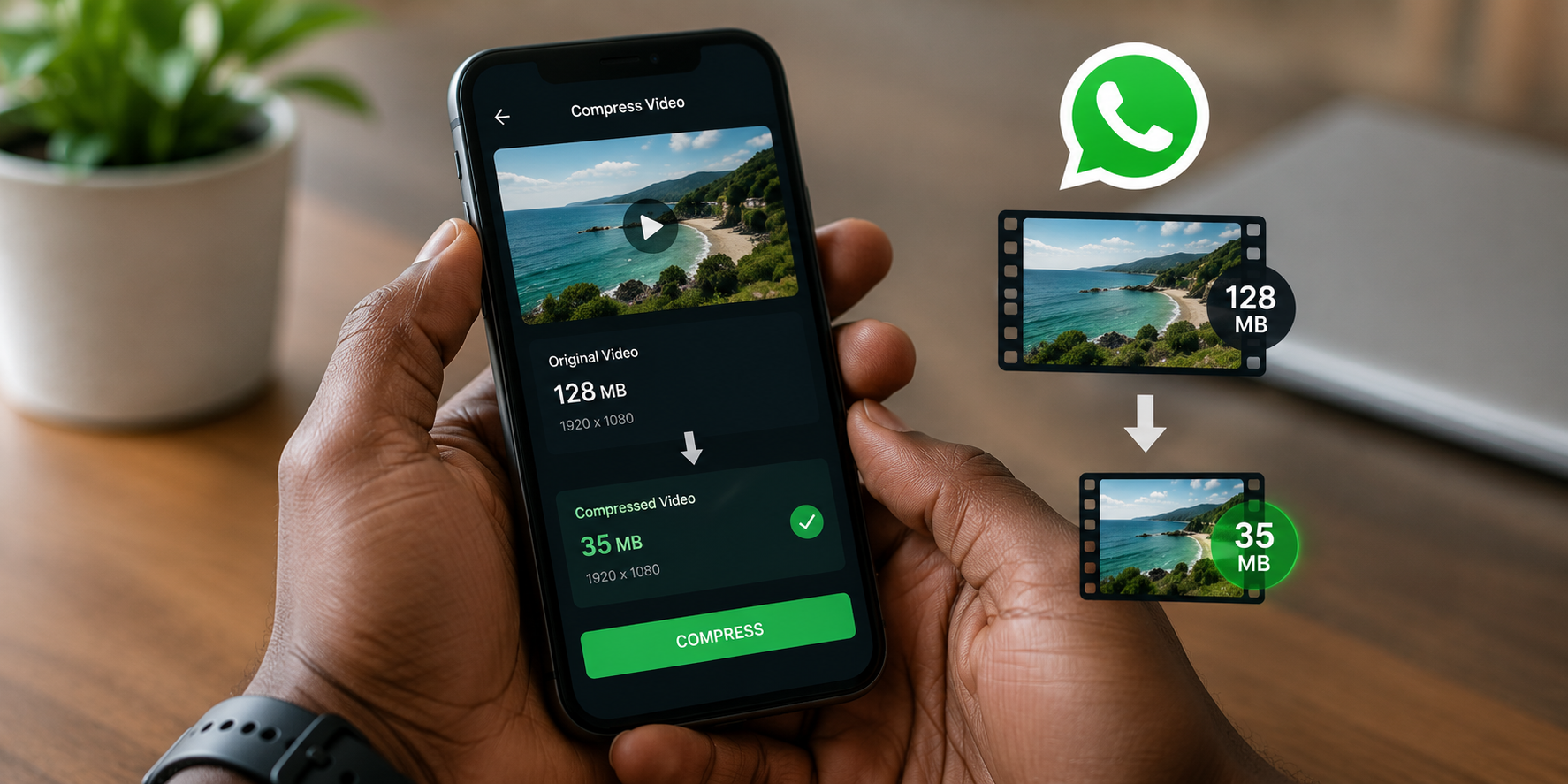
You recorded a beautiful video. Sharp details. Smooth motion. The file size is 450MB. You try to send it on WhatsApp and the app tells you the file is too large. Or it compresses the video automatically and the recipient receives a blurry, pixelated version that looks nothing like what you filmed.
WhatsApp limits video file sizes to 16MB on most devices. Some newer versions support larger files up to 2GB when sent as documents. But the default video sharing compresses everything aggressively. Your high-quality content becomes unwatchable.
Nigerians share videos constantly. Wedding highlights, product demos, content for clients, comedy skits, sermon clips, tutorial recordings. The need to compress videos without destroying quality is universal. This guide covers the best free apps that shrink video file sizes while keeping them looking good.
Why WhatsApp Compression Is So Aggressive
WhatsApp processes videos through its own compression algorithm before sending. The algorithm prioritizes small file sizes over quality. It reduces resolution, lowers bitrate, and strips detail to squeeze the video through its limits.
The result is efficient for WhatsApp servers. Billions of videos shared daily must be stored and transmitted. But it is terrible for your content. A crisp 1080p video becomes a muddy mess. Text becomes unreadable. Faces lose detail. Colours wash out.
The solution is compressing the video yourself before sending. You control what gets reduced and by how much. The compressed file is smaller but still visually acceptable. When WhatsApp processes it further, the starting quality is high enough that the final result remains watchable.
The Difference Between Compression and Resizing
Video compression reduces file size by removing redundant information. Smart compression identifies parts of the video that the human eye barely notices and simplifies them. The video looks nearly identical but the file is smaller.
Resizing changes the actual dimensions of the video. A 1080p video resized to 720p contains fewer pixels. This also reduces file size but in a different way. Combining smart compression with sensible resizing produces the best results.
For WhatsApp, aim for 720p resolution at a moderate bitrate. Most phone screens are small enough that 720p looks sharp. The file size will be manageable. WhatsApp’s own compression will have less work to do because the video is already optimized.
Video Panda
Video Panda is available for Android and offers a straightforward compression workflow. The interface is simple. You select a video, choose compression settings, and export.
The app provides multiple compression levels. The mild setting reduces file size modestly with minimal quality loss. The medium setting balances size and quality well for WhatsApp sharing. The heavy setting shrinks files dramatically but quality suffers noticeably.
Video Panda shows estimated output size before you compress. This eliminates guesswork. You adjust settings until the estimated size falls within WhatsApp limits, then process the file.
Additional features include basic trimming, speed adjustment, and format conversion. These are useful for quick edits before sharing. The app is free with ads. The ads are not intrusive during the compression workflow.
CapCut
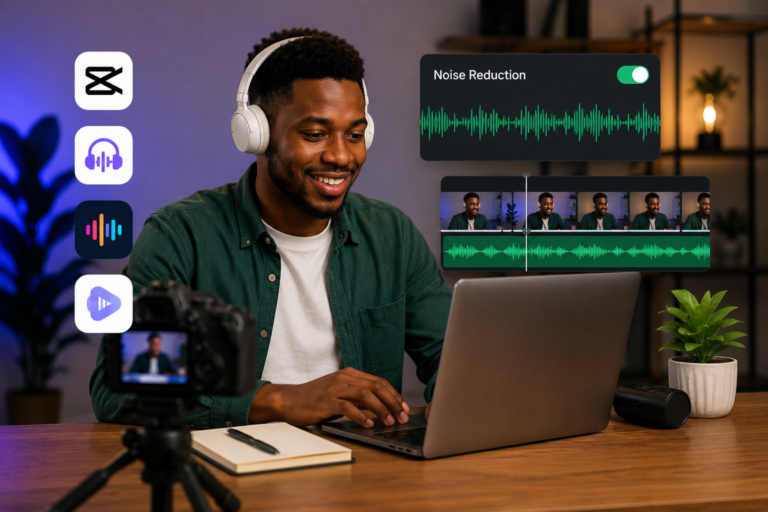
CapCut is already on many Nigerian phones for video editing. Its export settings function as compression controls.
When you finish editing your video, tap export. CapCut presents resolution and frame rate options. Choose 720p resolution. Keep the frame rate at 30fps unless you specifically recorded in 60fps for smooth motion. Lowering the bitrate setting if available reduces file size further.
CapCut does not label this as compression but the effect is identical. Exporting at lower settings produces a smaller file. The quality remains good because CapCut’s encoding is efficient.
The advantage of using CapCut is familiarity. You already know the interface. No new app to learn. Edit and compress in one workflow.
Video Compressor by InShot
InShot is popular for general video editing. Their dedicated compressor app is separate and focused solely on file size reduction.
The app displays original file size prominently. You set a target size or a target percentage reduction. The app adjusts compression parameters to hit your target. Preview the result before saving to confirm quality is acceptable.
Batch compression is supported. Select multiple videos and compress them together. This saves time when you have several clips to share.
The free version includes ads and a watermark on some features. For basic compression, the watermark is minimal and appears briefly. Paid version removes ads and watermarks.
YouCut
YouCut combines video editing with compression tools. The interface is clean and ad-supported.
Select a video, choose your output settings, and export. YouCut recommends settings optimized for specific platforms including WhatsApp. The WhatsApp preset automatically targets sizes that survive WhatsApp’s own compression with acceptable quality.
The app also includes trimming, merging, and background music features. For content creators who need quick edits before sharing, YouCut consolidates multiple steps into one app.
For iPhone Users
iPhone users have fewer free options because iOS restricts background processing more than Android. Several apps still work well.
Video Compress is a straightforward iOS app. Select a video, choose compression strength, preview the result, and save. The free version includes basic compression. The interface is minimal and focused on speed.
iMovie, pre-installed on iPhones, functions as a compressor through export settings. Import your video, tap share, choose save video, and select a lower resolution. The exported file is smaller than the original. iMovie’s encoding quality is excellent because Apple optimizes it for their hardware.
App Comparison Table
| App | Platform | Free | Best For | Batch Compression |
|---|---|---|---|---|
| Video Panda | Android | Yes (ads) | Simple, quick compression | No |
| CapCut | Android, iPhone | Yes | Edit + compress in one app | No |
| InShot Compressor | Android, iPhone | Yes (ads) | Target size compression | Yes |
| YouCut | Android | Yes (ads) | WhatsApp-optimized presets | No |
| Video Compress | iPhone | Yes | Minimal, fast iOS compression | No |
| iMovie | iPhone | Yes | High-quality Apple encoding | No |
Compression Workflow for Best Results
Start with the highest quality original video you have. Compression works better starting from high quality than from an already compressed file.
Trim unnecessary footage before compressing. Remove dead air at the beginning and end. Cut out mistakes and pauses. Shorter video means smaller file at any compression level. Trimming ten seconds of nothing at the start reduces file size more than aggressive compression of the full video.
Apply mild compression and export. Check the file size and quality. If the file is still too large, compress again at a slightly higher level. Iterative compression with preview produces better results than guessing the right setting on the first try.
Send the compressed video to yourself on WhatsApp first. Check how it looks after WhatsApp applies its own compression. Adjust your settings based on the final result, not the pre-WhatsApp preview.
For important videos going to clients or for professional purposes, consider sending as a document rather than as a video. WhatsApp document sharing applies less compression. The recipient downloads the file and plays it outside WhatsApp. Quality is preserved at the cost of slightly less convenient playback.
What Not to Do
Do not use online compression websites for sensitive or private videos. The video uploads to a server you do not control. You have no guarantee the video is deleted after processing. For casual content, this matters less. For client work or personal videos, use offline apps on your phone.
Do not over-compress hoping WhatsApp will be gentle. Overly compressed video already looks poor. WhatsApp compression on top of that produces unwatchable results. Leave quality headroom.
Do not ignore resolution completely. A 4K video compressed to WhatsApp size looks worse than a 720p video compressed to the same size. The compression algorithm has to discard more information from the 4K file. Start with sensible recording settings.
Frequently Asked Questions
What is the best video format for WhatsApp sharing?
MP4 with H.264 encoding. This format is universally supported and compresses efficiently. Most phones record in this format by default. If your phone records in HEVC or other formats, conversion apps can change to MP4 before compression.
Can I compress a video that is already compressed?
Yes but quality degrades with each compression cycle. Every compression pass removes some information. Starting from the original high-quality file always produces better results. Keep originals saved somewhere before compressing copies for sharing.
Why does my compressed video look good on my phone but bad after sending?
WhatsApp applies its own compression to every video sent through the default video sharing method. Your compressed video goes through a second compression round. Previewing by sending to yourself catches this before you send to others.
How much can I compress a video before quality becomes unacceptable?
This depends on the original quality and the content type. Videos with lots of detail and motion need higher bitrates. Videos with static scenes and simple visuals compress more aggressively. As a general rule, do not reduce bitrate below 1Mbps for 720p video.
Should I record in lower quality to avoid compression issues?
Not necessarily. Recording at higher quality gives you more flexibility. You can always compress down from high quality. You cannot recover quality that was never recorded. Record at the highest practical quality and compress copies for sharing.
Compress Smarter, Not Harder
Pick one app from this list. Video Panda for Android. CapCut if you already use it. Video Compress for iPhone. Install it now.
Find a video on your phone that you wanted to share but could not because of size. Run it through the compressor. Send the compressed version to yourself on WhatsApp. Check the quality. Adjust settings if needed.
The process takes two minutes once you learn it. Your videos arrive looking better. Your recipients notice the difference. Your content makes the impression you intended, not the impression WhatsApp compression allowed.