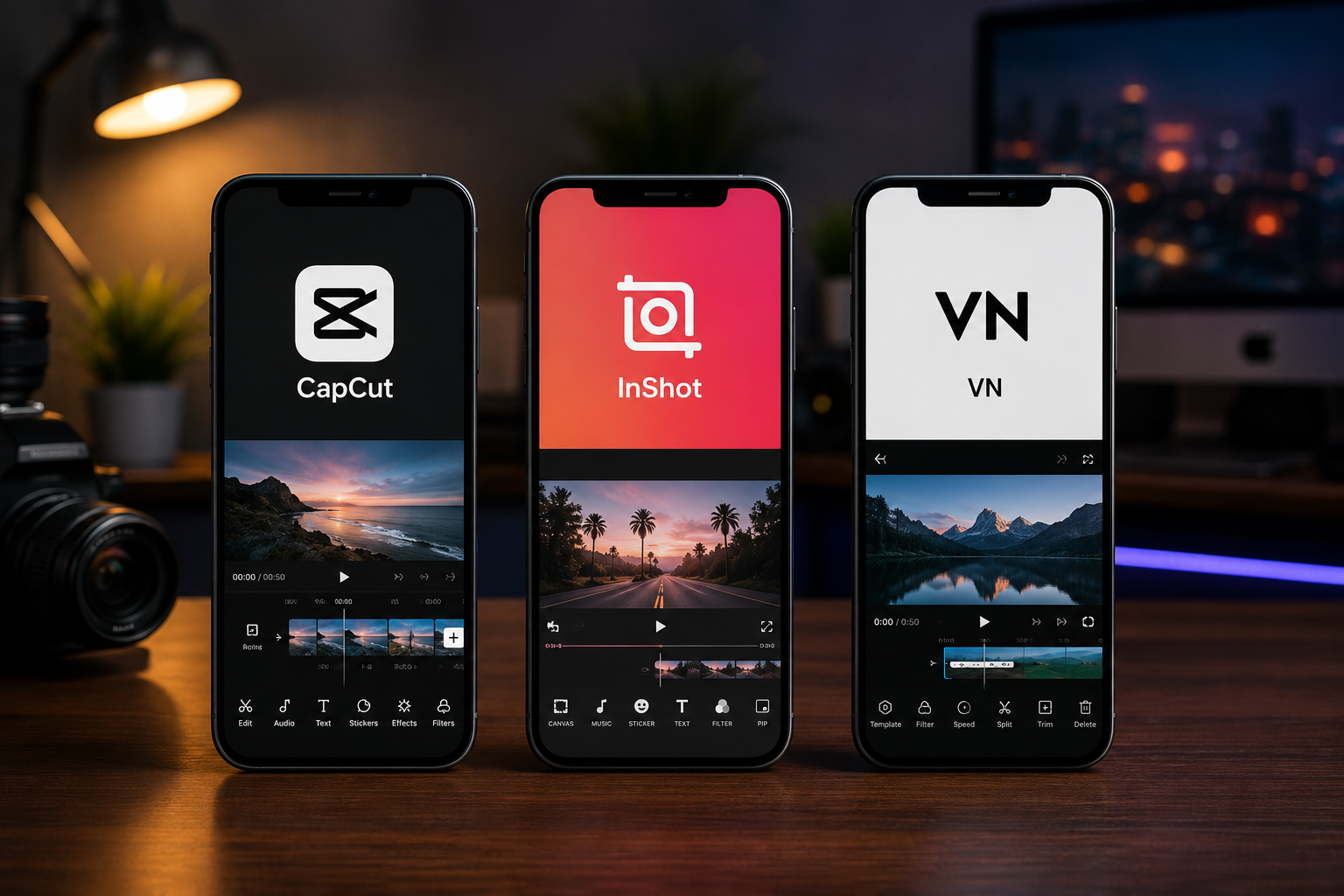
Three editing apps sit on my phone. CapCut, InShot, and VN. At different points in the past year, each one has been my primary editor. I have switched between them when one frustrated me or when another added a feature I needed.
Other Nigerian creators ask me which one they should use. The question seems simple but the answer depends on what kind of content you make, what phone you use, and what features matter most to you.
Instead of giving a generic recommendation, I edited the same video on all three apps. Same footage. Same goal. A two-minute talking head video with captions, background music, a couple of text overlays, and basic colour correction. This comparison is based on that real testing.
What Kind of Creator Each App Suits
Before diving into features, understand that these apps are built for different users.
CapCut is built for short-form content creators. TikTok and Reels are its natural habitat. It integrates with TikTok directly and its features prioritize quick, engaging edits. If you make sixty-second content for social media, CapCut is designed for you.
InShot is built for general video editing. It does not assume what platform you are editing for. It provides a balanced set of tools that work for both short and long content. If you edit videos for multiple platforms and need flexibility, InShot aims to serve.
VN is built for editors who want more control. It offers a timeline that resembles professional desktop editors. It includes features like keyframe animation and advanced colour grading that the others lack. If you enjoy the editing process and want granular control, VN provides it.
Starting the Edit
Opening each app with the same footage revealed immediate differences.
CapCut imported my video clips quickly. The interface is clean. The timeline appears at the bottom. Tools appear above the timeline. Everything is thumb-friendly on a phone screen. The learning curve is gentle. Most features are discoverable within a few minutes of tapping around.
InShot imported the footage and immediately asked what aspect ratio I wanted. This is a small thing but it reflects InShot’s platform-agnostic approach. It does not assume I am making a TikTok. The timeline is similar to CapCut. Tools are arranged slightly differently but equally accessible.
VN imported the footage and presented a timeline that looks more like a professional editor. Multiple tracks for video, audio, effects, and text. This is powerful but initially intimidating. A creator opening VN for the first time might feel overwhelmed by the interface complexity.
Captioning
Captions are essential for social media content. Many viewers watch without sound. Auto-captioning saves enormous time compared to manual typing.
CapCut handles auto captions the best. The feature is prominently placed. One tap generates captions for the entire video. The accuracy is good for clear English speech. Nigerian accents with moderate strength are handled reasonably. Strong accents produce more errors.
The caption editing interface in CapCut allows you to correct mistakes efficiently. Tap a caption. Edit the text. The change saves. You can also style captions in bulk. Change font, colour, size, and position for all captions simultaneously. This is a significant time saver.
InShot does not have built-in auto-captioning. You must manually type captions or use a separate app to generate them and import them. This is a major drawback for creators who caption every video. Manual captioning a two-minute video takes significantly longer than auto-captioning with corrections.
VN has auto-captioning but it is less polished than CapCut. The accuracy is similar but the editing interface is clunkier. Correcting mistakes takes more taps per caption. Bulk styling options are limited.
For caption-heavy workflows, CapCut wins clearly.
Transitions and Effects
Transitions smooth the cuts between clips. Effects add visual interest.
CapCut offers a large library of transitions. Most are designed for fast-paced social media content. Zoom transitions, spin transitions, glitch effects. The transitions are easy to apply. Tap between clips. Select a transition. Preview immediately.
InShot offers a similar library of transitions. The selection feels slightly smaller than CapCut but covers the essentials. Application is straightforward. The transitions themselves are less flashy than CapCut, which may be good or bad depending on your style.
VN offers fewer built-in transitions but more control over customizing them. You can adjust transition duration precisely. You can create custom animation curves. This control matters for polished long-form content but is unnecessary for most social media videos.
Background Music and Sound Effects
Adding music and sound effects sets the mood and covers awkward silence.
CapCut includes a library of royalty-free music and sound effects. The library is large and organized by mood, genre, and duration. The music is designed for social media. Short tracks that loop cleanly. The quality is decent. CapCut also allows extracting audio from any video you have saved, useful for trending sounds.
InShot includes its own music library plus sound effects. The selection is adequate. InShot also allows adding music from your device storage and extracting audio from videos.
VN includes a music library but it is the smallest of the three. VN’s strength is audio editing precision. You can adjust volume at specific points in the timeline. You can create fade-ins and fade-outs with precise control. For creators who care about audio quality, VN provides more tools.
Text Overlays
Adding text beyond captions is useful for titles, emphasis, and calls to action.
CapCut offers text templates designed for social media. Animated text, styled text, text with background shapes. Applying a template is fast. Customizing the text content takes seconds. The templates are trendy and match what performs well on TikTok and Reels.
InShot offers text tools that are functional but less flashy. You add text, choose font and colour, position it, and set duration. Animation options exist but are basic compared to CapCut. The text tools work fine but lack the social-media-optimized templates.
VN offers the most text styling control. You can animate text using keyframes. You can apply multiple effects to the same text element. The possibilities are broader but the effort required is higher. Simple text that takes thirty seconds in CapCut might take two minutes in VN with more polished results.
Colour Correction and Filters
Adjusting colours can rescue poorly lit footage or create a consistent visual style.
CapCut offers filters and basic adjustment sliders. Brightness, contrast, saturation, and temperature adjustments are available. The filters are designed for social media aesthetics. Application is one tap. Adjust intensity with a slider.
InShot offers similar adjustment tools with slightly more control. The filter selection includes more subtle options alongside the dramatic ones. The adjustments feel slightly more responsive with finer increments.
VN offers the most advanced colour tools. Curves, colour wheels, and precise white balance controls. These are tools found in professional desktop editors. Learning to use them effectively takes time. For creators who understand colour grading, VN provides capabilities the others lack. For creators who just want to brighten a dark video, the tools may be overwhelming.
Export Quality and File Size
The final video quality and file size affect how the content looks and how easily it uploads.
CapCut exports at good quality with reasonable file sizes. A two-minute 1080p video exported around 80MB in my test. Export settings are adjustable. You can reduce resolution and bitrate for smaller files.
InShot exports at comparable quality. File size was similar. Export settings provide control over resolution and quality. InShot also includes a compress video feature separate from export, which is useful for creating WhatsApp-friendly file sizes.
VN exports at the highest potential quality. It supports higher bitrates and more format options. File sizes can be larger at maximum settings but you have full control over reducing them. The export settings include options that the average social media creator will never need alongside those they will.
Performance on Budget Phones
Not every Nigerian creator has a flagship phone. Performance on affordable devices matters.
CapCut runs smoothly on mid-range and budget phones. It is well optimized. The app opens quickly. Timeline scrubbing is responsive. Export times are reasonable. On a phone with 4GB RAM, CapCut handles editing without significant lag.
InShot is similarly well optimized. It runs smoothly on the same hardware. Timeline performance is comparable. Export times are similar to CapCut.
VN is heavier. On budget phones with limited RAM, VN may lag during timeline scrubbing. Export times are longer. The advanced features demand more processing power. VN is best on phones with at least 4GB RAM and a reasonably fast processor.
Watermarks and Free Limitations
All three apps are free but with different limitations.
CapCut free version is generous. Most features are available without payment. The watermark on free exports is removable in settings. CapCut Pro adds advanced features like more caption styles, more effects, and higher quality exports. For most creators, the free version is completely adequate.
InShot free version adds a watermark to exported videos. The watermark is removable by watching an ad or upgrading to premium. The free version also includes ads during editing. The ads are not intrusive during the editing process but appear between actions.
VN is completely free. No watermark. No ads. No premium tier. All features are available without payment. This is unusual and worth acknowledging. VN makes money through other products and keeps this app free as part of their ecosystem strategy.
Which One Should You Choose
If you make short-form content for TikTok and Instagram Reels, use CapCut. The auto-captioning, social-media-optimized templates, and seamless TikTok integration save time and produce content that matches platform trends. The free version handles everything most short-form creators need.
If you edit videos for multiple platforms including longer YouTube content, consider InShot. The platform-agnostic approach and balanced feature set provide flexibility. The watermark is the main drawback. If you can tolerate watching occasional ads to remove it or can afford premium, InShot is a solid all-rounder.
If you enjoy editing and want advanced control, choose VN. The professional timeline, keyframe animation, and advanced colour tools reward effort with polished results. The completely free model means no limitations. The tradeoff is a steeper learning curve and heavier performance requirements.
If you edit on a budget phone, prioritize CapCut or InShot. VN may struggle on limited hardware.
If you rely heavily on auto captions, choose CapCut. The captioning workflow is significantly better than the alternatives.
Frequently Asked Questions
Can I use more than one editor?
Yes. Many creators use CapCut for short-form content and VN for projects requiring more editing control. Using multiple editors based on the project needs is practical. The skills transfer between them.
Do these apps work on iPhone?
Yes. All three are available on iOS and Android. The features are similar across platforms with minor interface differences.
Will these apps remain free?
CapCut and InShot have premium tiers but maintain functional free versions. VN is currently completely free. This could change. App policies evolve. For now, all three offer usable free editing.
Which app handles 4K video best?
VN handles 4K best with more export control. CapCut and InShot support 4K but may compress more aggressively. For most social media content, 1080p is sufficient.
Can I transfer projects between apps?
No. Projects created in one app cannot be opened in another. Choose your app before starting a project. If you switch apps, you must start the edit from scratch.
Edit Your Next Video With Clarity
Pick one app based on your content type and priorities. Edit your next video using only that app. Learn its shortcuts and quirks. Mastery of one editing tool produces better content than surface familiarity with three.
The best editing app is the one you know well enough to edit quickly. Speed matters. The less time spent fighting your editor, the more time spent creating content. Choose. Learn. Create. Repeat.